Posts

The Secret Sauce Behind VMware’s Internal Horizon Desktop Deployments – VMworld 2017

This year at VMworld, myself and my colleague Simon Long had the opportunity to talk about a project we’ve been working on for the past few years. We’ve been re-redesigning and deploying VMware’s internal Horizon Desktop environments. Session Summary “How does VMware architect its own global VMware Horizon desktop environment?” “Has it encountered the same obstacles we are facing?” Over the past two years, VMware has been re-architecting and deploying its virtual desktop infrastructure with VMware Horizon, VMware App Volumes, and VMware User Environment Manager running on top of the full VMware software-defined data center stack (VMware vSphere, VMware vSAN, VMware NSX) and integrating with VMware vRealize Operations Manager and VMware vRealize Log Insight. In this session, the lead architects will reveal all. Our session ( ADV1255BU – The Secret Sauce Behind VMware’s Internal VMware Horizon Desktop ) includes the following sections: Where we we? – Why did we need to kick off this pr...
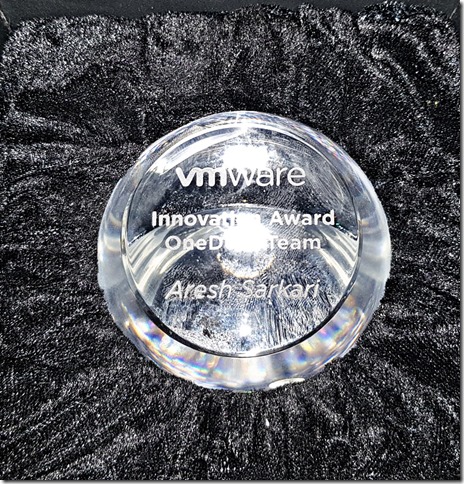
VMware CIO Innovation Award – OneDesk

Image
I thought I would share some pretty exciting news with you guys, I’ve recently received an award internally within VMware for a cool project that myself and my colleague Simon Long have been working on for the past 6-8 months. The project in question is called OneDesk. I’ll explain more about OneDesk shortly. CIO Innovation Award The award we won is called the VMware CIO Innovation award. Here is the description of the Innovation category: “The team which best accomplished the goal of creating and developing new products and/or services.” Aresh Sarkari – VMware CIO 2017 Innovation Award I wasn’t very lucky to receive the award in-person as the award arrived in India a couple of days late and by then Bask Iyer had to leave back for PA, CA. OneDesk The project myself and Simon Long have been working on is called OneDesk. For those of you who attended our VMworld session: The Secret Sauce Behind VMware’s Internal Horizon Desktop Deployments you’d have heard us talking about it ...

Automating Desktop Pool creation using PowerCLI – VMware Horizon 7.x

The Desktop Pool Creation using PowerCLI and JSON file is by far the most powerful and advance way of creating desktop pools in Horizon 7.x in a automated way. Before you begin with the script and JSON file make sure you have read this blog post “ Automating VMware Horizon 7 with VMware PowerCLI 6.5 ” by Graeme Gordon it explains step by step how to prepare machine and execute the PowerCLI. The following is the script (Save as desktoppool.ps1 ) you will need to execute this script for invoking the desktop pool creation using the advanced functions of the module - New-HVPool -spec 'path to InstantClone.json file' PowerCLI Script for Desktop Pool: ################################################################################ # Create a Linked Clone Desktop Pool in Horizon using PowerCLI and Defining parameters in JSON ################################################################################ #region variables ######################################################...

Export VMware App Volumes - Writable Volumes from VSAN Datastore

Image
If you have a VMware VSAN environment and you wanted to export a App Volumes - Writable Volumes from the vsanDatastore to another datastore, storage or for VMware GSS/R&D for further analysis go ahead and read further! Background – The traditional way of exporting the Writable Volumes from the source vsanDatastore was to attach the *. vmdk to a dummy VM as a “ Existing Hard Disk ” and export the dummy VM using the “ Export OVF Template ” option from the vCenter. Repeat all the steps on target datastore where-in it needs to be imported. However, if you want an alternate and easy method than the dummy VM then follow the below steps. Step by Step Instructions: -- SSH to any ESXi Host Resource Cluster where the WV is stored and browser to the cloudvolumes/writable directory location : # cd /vmfs/volumes/vsanDatastore/cloudvolumes/writable (This is the location where all end-user writable volumes are stored) -- Now search for the end-user (E.g twood) for which you want to exp...

McAfee Exclusion for VMware App Volumes 2.x – 100% CPU Issues

In your Virtual Desktop Infrastructure with the following configurations: Horizon 7.x – Floating Desktop Pool App Volumes 2.x – Writable Volumes UIA+Profile McAfee Agent 5.x and McAfee VSE 8.x in your Master Image If you start noticing 100 % -   CPU Usage   for prolonged period of time and the Horizon Session getting disconnected from time to time after launch then you might need to include the following exclusion within your Writable Volumes (UIA+Profile) snapvol.cfg file: #McAfeeExclusion exclude_process_path=\Program Files\Common Files\McAfee\SystemCore My colleague Daniel Bakshi has written an extensive blogpost on how to modify the snapvol.cfg for individual or group of end-users please reference it to make the necessary changes - Using the VMware App Volumes snapvol.cfg File to Customize Writable Volumes I hope you will find these exclusion useful and will help you resolve a similar issue a lot quicker. A big thanks to Art Rothstein in helping to troubleshoot and...

Create a Memory Dump from a Suspended Virtual Machine - VMware vSAN

Image
If you have a VMware VSAN environment and you wanted to capture a memory dump of the Virtual Machine for debugging or want to provide memory.dmp to VMware GSS or R&D for further analysis go ahead and read further! Use Case – In our scenario had a few VDI Desktops running Windows 10 1607 + Horizon 7.3.1 + App Volumes Writable Volumes 2.13.1 + UEM 9.2.1 that were getting into unresponsive state. As a last resort we wanted to capture the memory dump to find out more what is causing the VM to get unresponsive. Step by Step Instructions: -- Using the vCenter console select the Virtual Machine VM – Power – Suspend -- This will create the *.vmss and *.vmem file for Debugging. (Note the *.vmem file is applicable for ESXi 6.0 onwards) -- Make a note of the ESXi host Name/IP for the VM is in Suspend state -- SSH to the ESXi Host and browser to the VM Directory location : # cd /vmfs/volumes/vsanDatastore/od-av-troub-1 (Where “od-av-troub-1” is the VM name) -- Now lets op...

Persistence Profile - F5 LTM Load Balancing for VMware Unified Access Gateway Appliance

Image
If you are using F5 LTM in the DMZ to load balance (LB) the VMware Unified Access Gateway (UAG) appliance, it is very important to use the iAPP or the F5 Deployment guide to set the Persistence Profile options properly or/else you might end up with issues. Background: The F5 LTM VIP for UAG Appliance was created manually without using the f5_vmware_view   iApp and the Persistence Profile settings were manually configured. (I highly recommend to use the iApp and go through the F5 deployment guides) Issue1 : The BLAST connection fails in the backend. The original SessionID request was going to UAG1 and due to the LB in the front the next request for the same SessionID was going to UAG2. Log Snippet UAG1: [2017-XX-XX 12:50:33.428] [INFO]    2289 [absg-master] - Added route 810DF5FF-*** to target 10.x.x.x|22443 Log Snippet UAG2: [2017-XX-XX 12:50:35.589] [ERROR]    2723 [absg-worker] - Failed to resolve proxying route: 810DF5FF-*** As noted above the ...